PowerUser
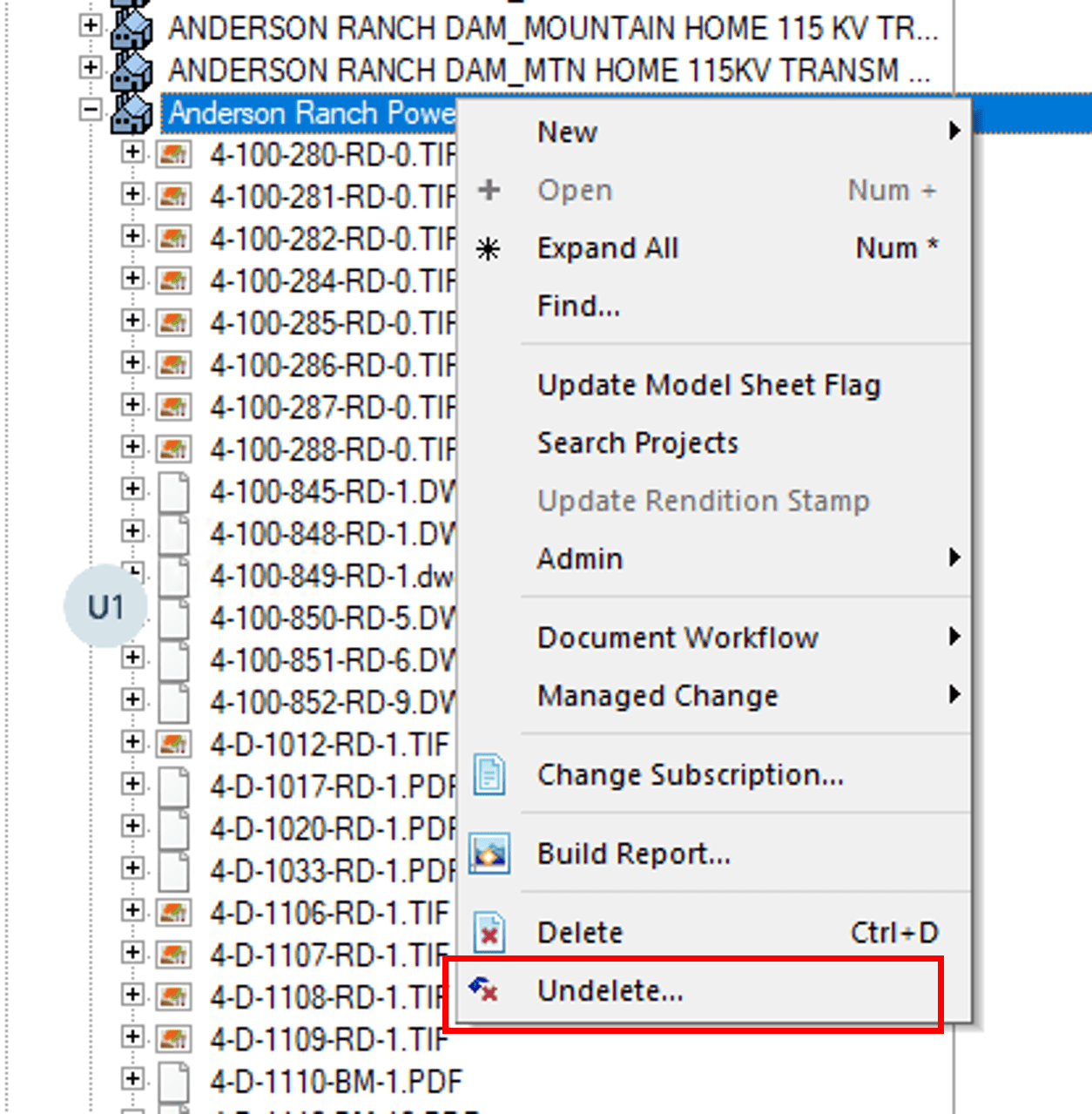
- Navigate to the folder where deleted documents were located.
- Right-click on the folder and select “Undelete from the pop-up menu”.
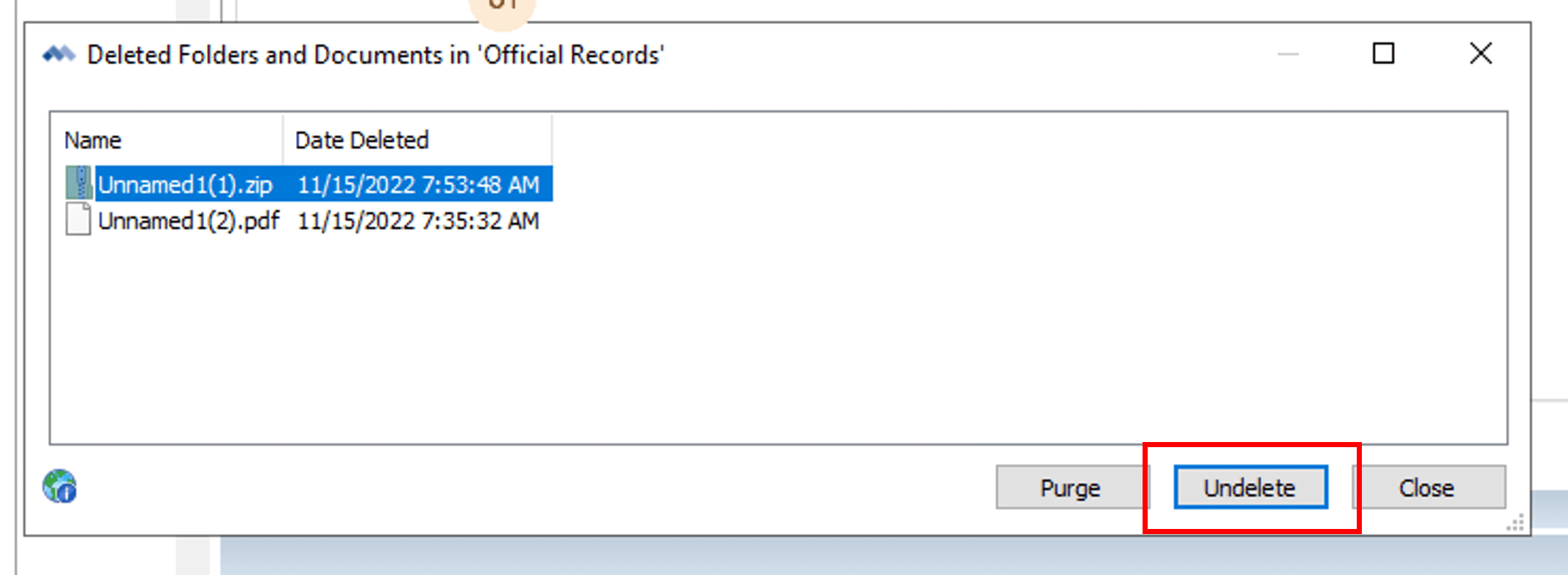
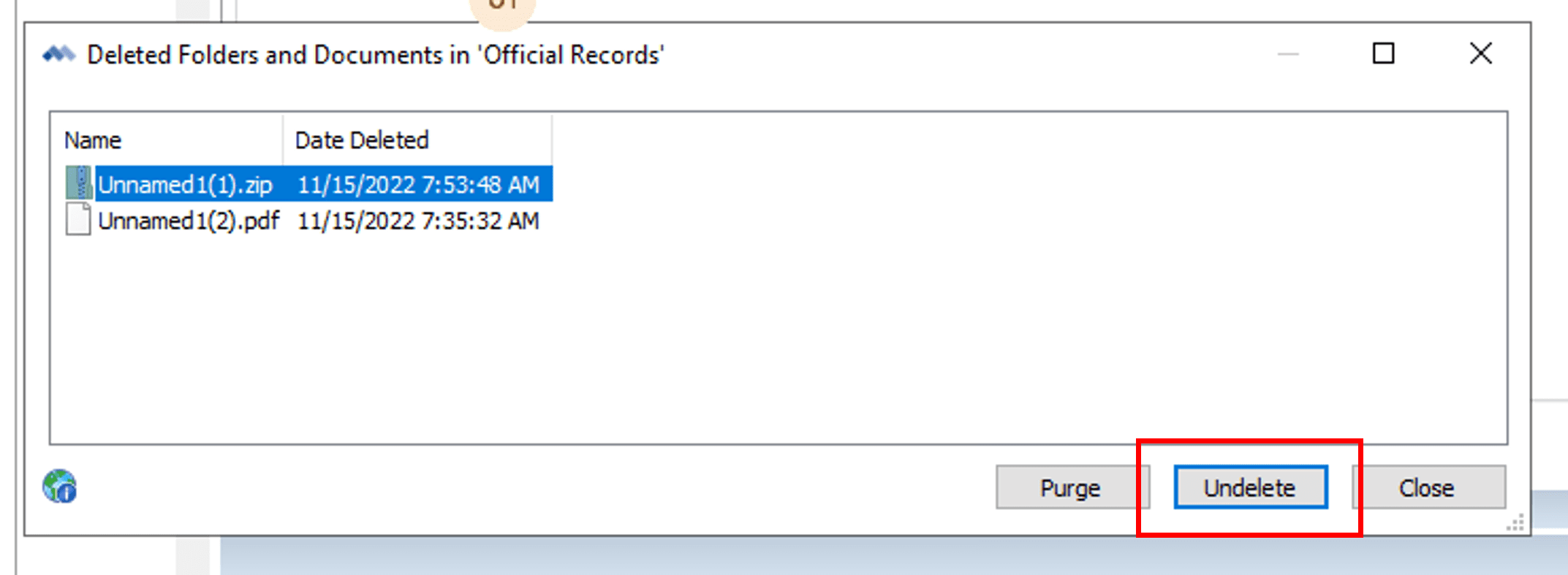
- A window with all the deleted documents located in the selected folder will display. Select the document(s) to undelete and click the UNDELETE button.
PowerWeb
- Navigate to the folder where the deleted documents were located.
- Select the folder.
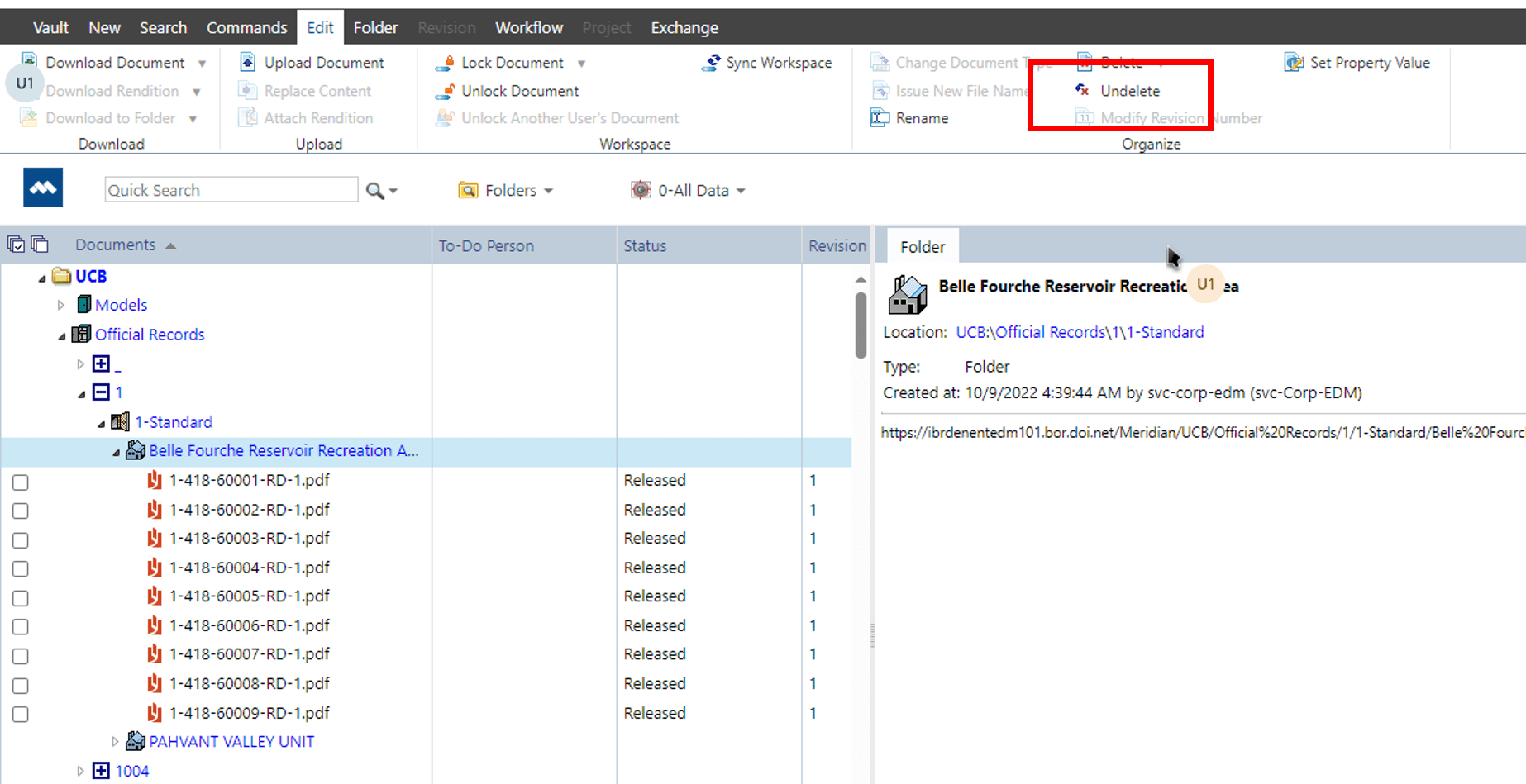
- From Top Menu Bar
- Select Edit
- Under “Organize” section, select “Undelete”
- From the pop-up menu.
- Right-click on the folder.
- Select Edit + Organize + Undelete
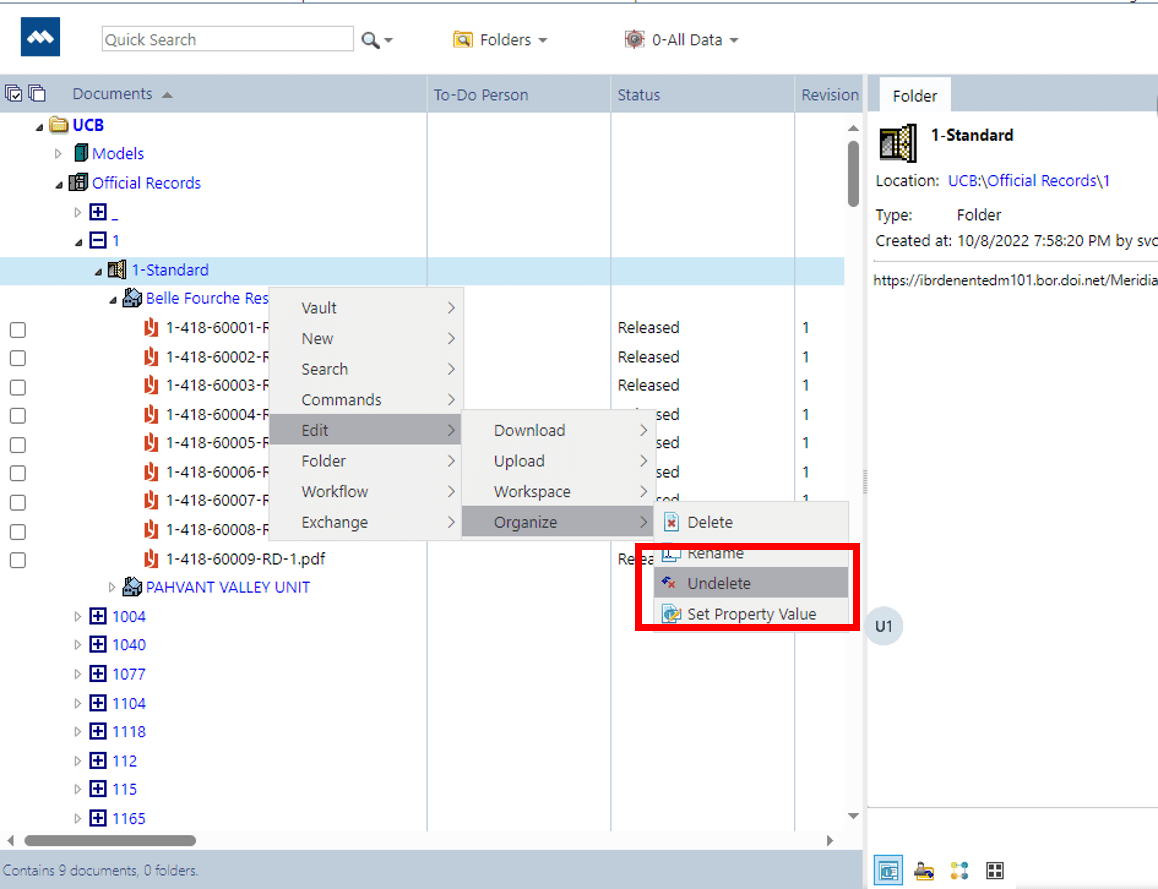
- When the window with the list of deleted documents appears, select the document(s) to undelete and click the “Undelete” button.